How to use
Get the most out of Healthboard in five steps
- 🍽️
1. Log a meal or workout
Use the Add screen to record what you ate or how you trained. Search the product and exercise database or add your own.
Step by step
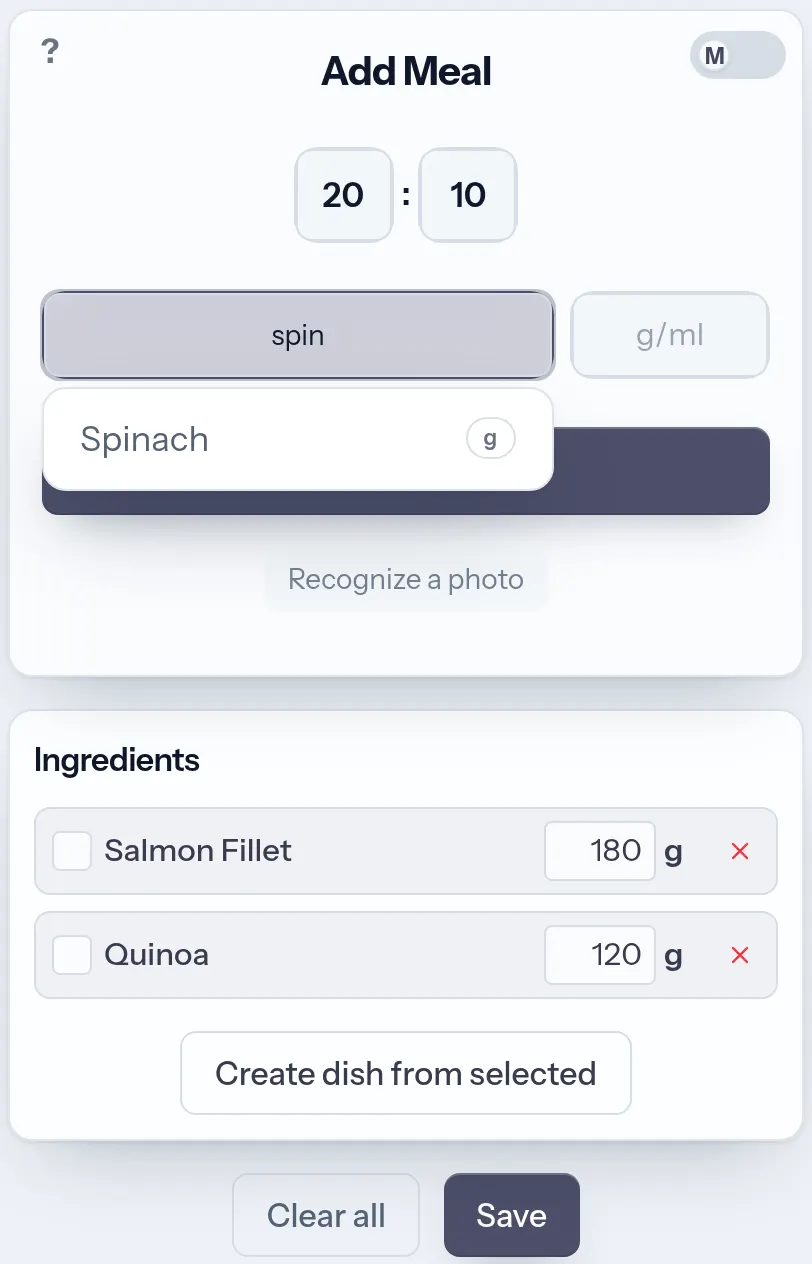
- Pick the mode first — Add Meal or Add Train. It decides what the name field searches: foods and dishes, or exercises and machines.
- Start typing a name and take a match from the autocomplete; press Space in an empty name field to browse the whole list. Amounts go in grams for solid food and millilitres for drinks, so a portion is one number.
- In Add Train, strength exercises take reps and weight in kilograms, while running, cycling and the like take minutes. The same exercise added twice is grouped into one entry, and a rest timer runs between sets.
- Items collect in a draft and nothing is stored until you press Save. Select several ingredients and press "Create dish from selected" to log them later under one name; the photo button turns a picture of the plate or the label into a draft you confirm.
- 📊
2. Check your Healthboard
The dashboard aggregates your nutrition — macros, vitamins, minerals, amino acids and fatty acids — over the selected time range.
Step by step
- Set the time range at the top — day, week, two weeks, month, year, a custom span, or just the last meal. Everything below is recalculated for that window.
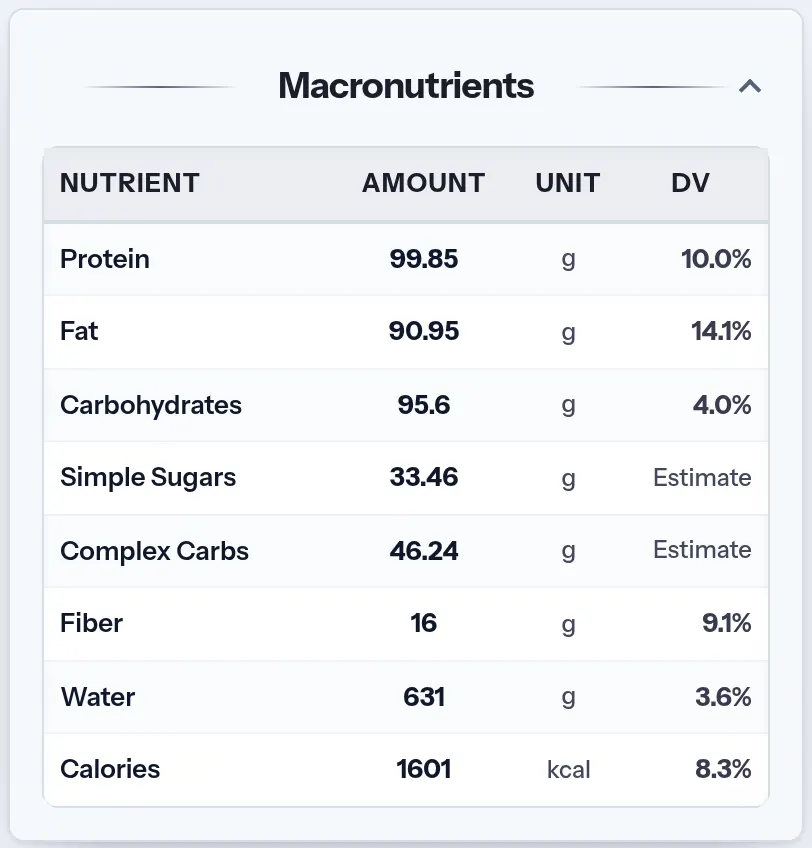
- Macronutrients come first: calories, protein, fat, carbohydrates split into simple sugars and complex carbs, plus fibre and water.
- Vitamins and minerals are shown as a share of the daily value, so a shortfall is visible at a glance. The potassium-sodium card adds the K:Na ratio and points to foods that fix a low one.
- Protein is judged, not only counted: the amino acid section gives the DIAAS score and names the limiting amino acid. Fats are broken down into saturated, monounsaturated, polyunsaturated, omega-3, omega-6 and trans.
- 💪
3. Track your training
Log workouts to see volume, calories burned and which muscle groups you hit, both primary and secondary.
Step by step
- Trainboard lists the workouts in the chosen range. Open one to see every exercise with its reps, weight or minutes, the way you entered it.
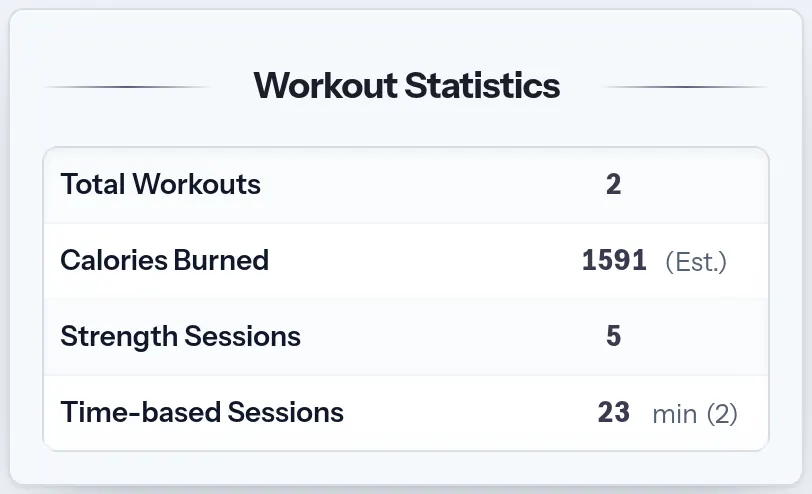
- Workout statistics sum up the range: number of sessions, time, calories burned, and how the work splits between strength and time-based exercises.
- Every workout marks the muscles it loaded — primary in purple, secondary in pink. Click a muscle name to open its card with the exercises that hit it.
- Meals and workouts share one timeline, so the same range on Healthboard shows what you ate around the session — the food that recovery is calculated from.
- ⏱️
4. Time your recovery
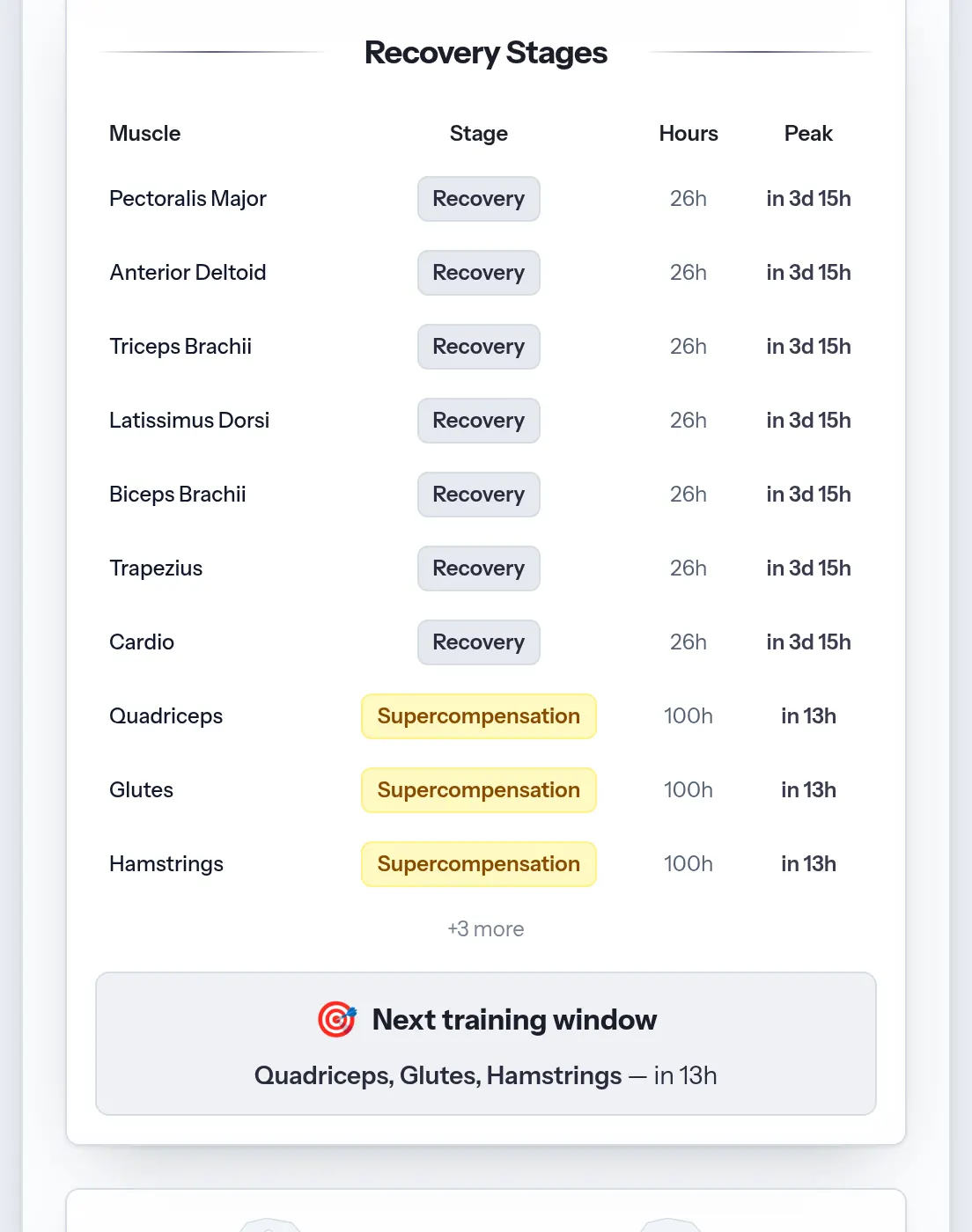
Muscle Recovery shows each muscle's supercompensation stage and the ETA to its peak — train in that window for best gains, and heed overtraining warnings.
Step by step
- The Muscle Recovery card puts every trained muscle on its own curve: first recovery, then supercompensation — the window in which the muscle is stronger than it was before the workout.
- Recovery Rate is how fast that curve moves. It depends on how much protein you ate, how good it was (DIAAS), how soon the first meal came after training, and on total calories — which is why the food diary changes the training plan.
- A muscle marked Supercompensation is at its peak right now — the best moment to train it again. For one still recovering, the table shows the hours since the workout and how long is left until that window.
- Warnings appear when a muscle is trained again within 48 hours, when the recovery rate is low, or when there are too many training days in a week. They are a reason to rest, not a score to beat.
- 🥗
5. Ask about nutrition
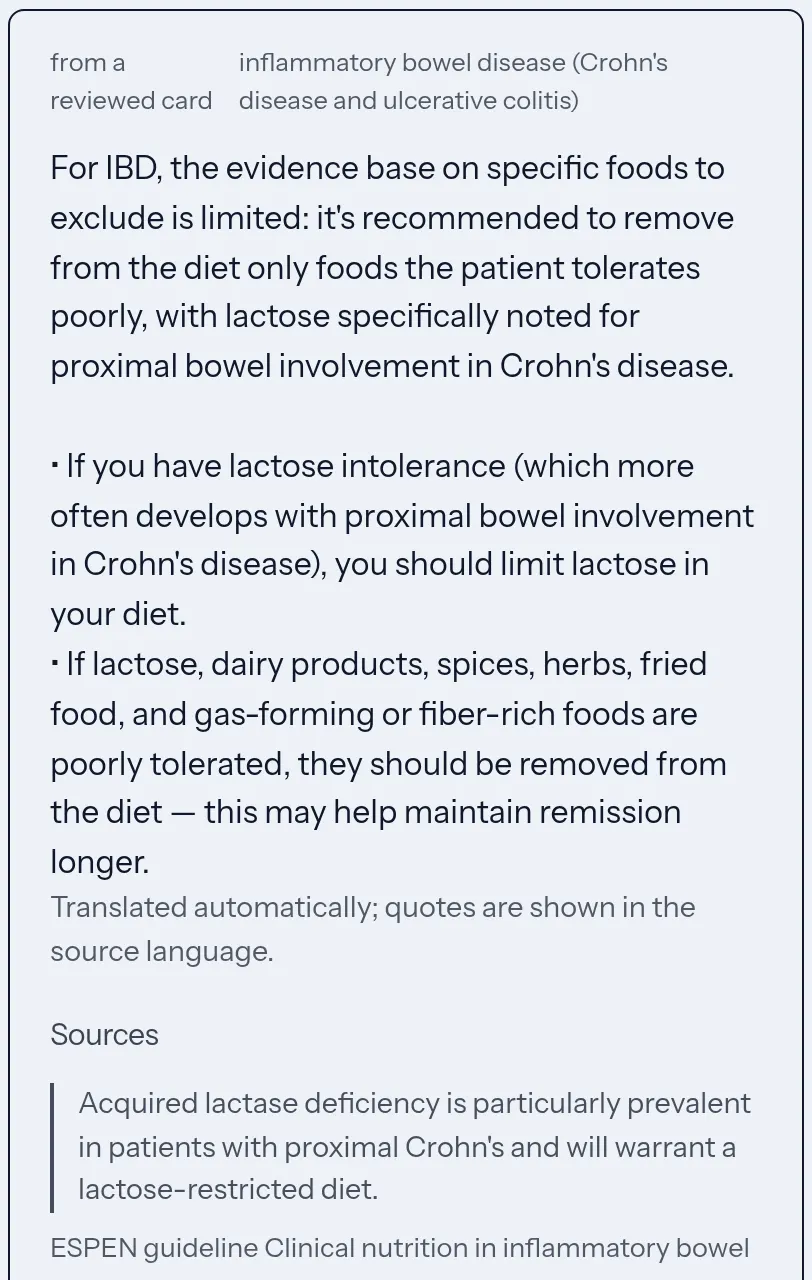
With a gut condition, ask what you can eat: the answer comes out of clinical guidelines with the quotes attached. Log how you feel each day, and the diary itself will show which food groups keep coinciding with symptoms — then test one by removing it for two weeks.
Step by step
- Ask in plain words — "what can I eat during a gastritis flare". The answer is assembled from clinical guidelines and open research, and every statement carries the quote it rests on. Where the sources say nothing, the answer says so instead of guessing.
- Log how you feel each day, and log the good days too: without them there is no telling a calm day from a day you did not open the app, and every conclusion about what does not suit you falls apart.
- The coincidence section compares your own diary against a fixed list of food groups. It shows what happened together, never a cause — test a suspect by dropping it for two weeks and watching the same numbers.
- Alarming signs — blood, black stool, yellow skin, trouble swallowing, fever, symptoms that wake you at night — turn the answer into a referral. Nothing on this page replaces a doctor.
- 🔍
6. Explore the databases
Browse products, dishes, exercises, muscles and the glycemic index to learn more and plan ahead.
Step by step
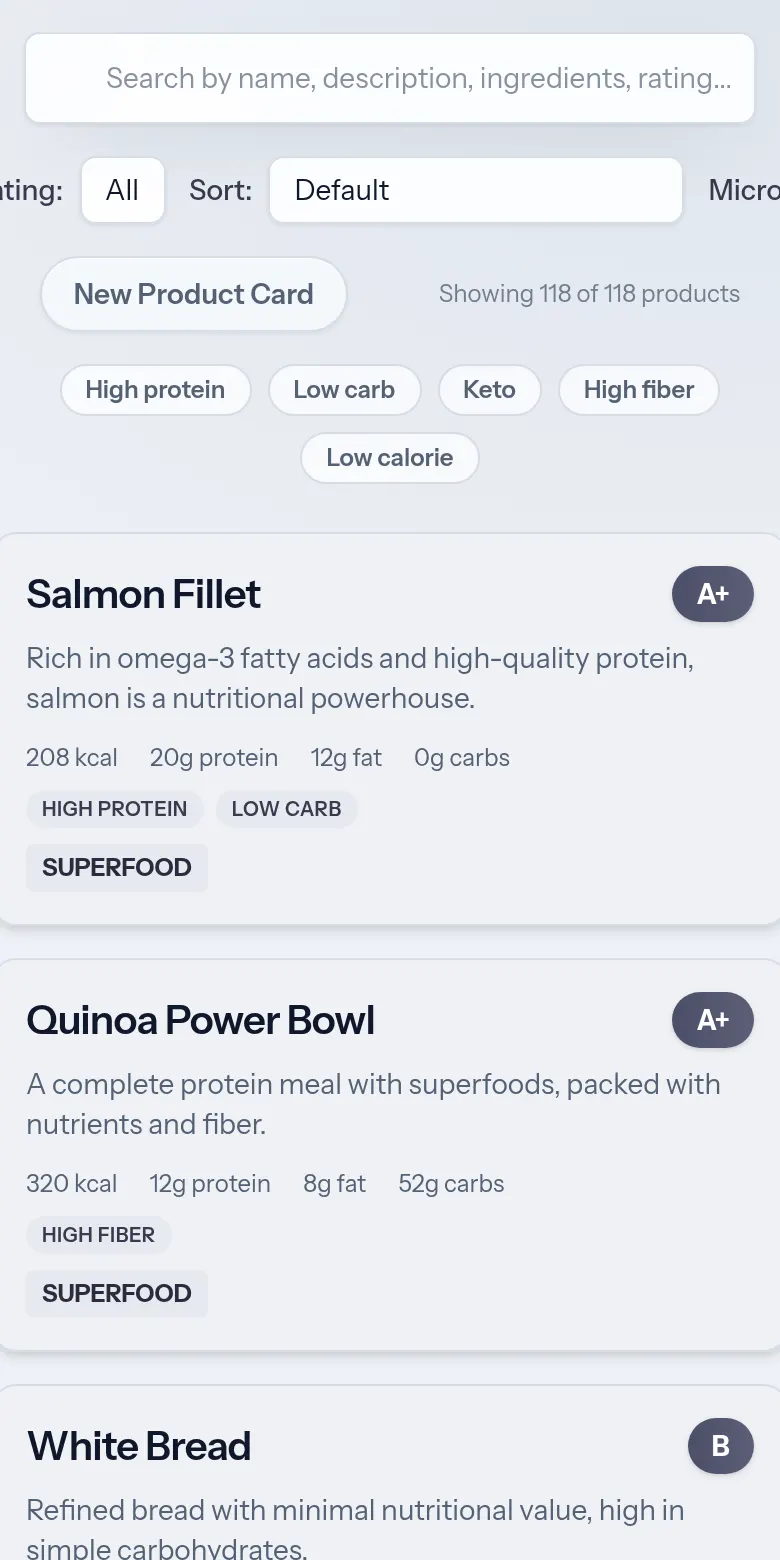
- Products and dishes are searchable by name, description or ingredient, filtered by type, rating, diet tags and micronutrient, and sorted by calories, protein, fat, carbs or glycemic index.
- A product card gives the full nutrient breakdown per 100 g and lets you put other products next to it for a side-by-side comparison.
- Exercises, machines and muscles link to each other: from a muscle you reach the exercises that load it, and from an exercise the muscles it works and the machines it needs.
- Recipes, the glycemic index table and personal care ratings complete the library. All of it reads without an account, so you can look something up before deciding to log it.